System Dashboard Pro 4.3.0
System Dashboard Pro 4.3.0 for Mac
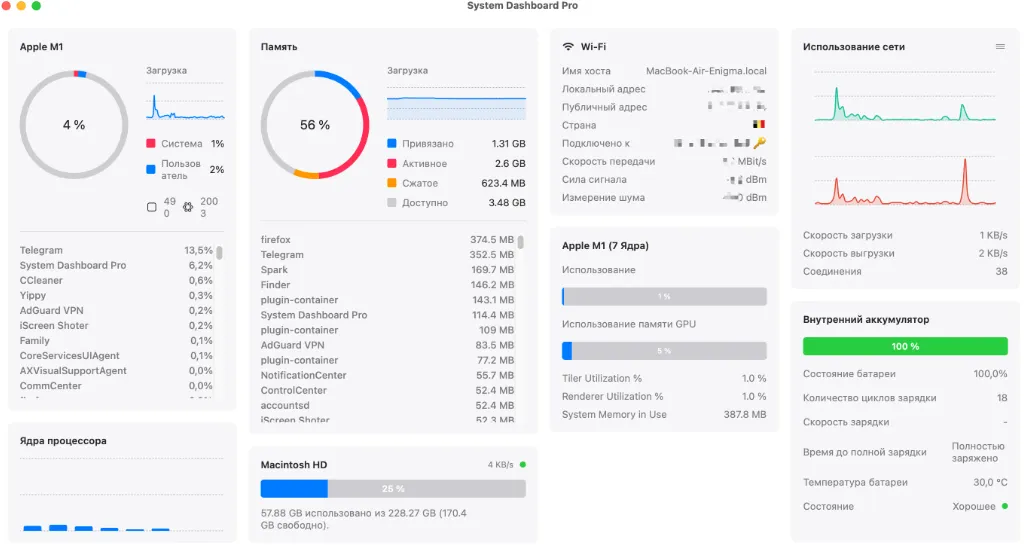
A single live window that shows processor, graphics, memory, storage, and network numbers so you can see why a Mac feels busy without flipping through Activity Monitor tabs.
Reading a spike, then moving the tiles
Launch the app and read the header first: model, uptime, thermal state, then the panels below. When fans spin up, check the processor graph (system versus user), the per-core bars, and the short list of processes using the most CPU. The memory panel works the same way for RAM hogs. A graphics tile reports GPU load, video memory, and which apps are using the GPU. Storage shows used versus free space plus current read and write speed. Network tiles cover adapter details, local and external IP (with a country for the public address), Wi-Fi rate and signal, and a download/upload graph. On a MacBook, the battery tile lists charge, condition, cycle count, and health. On a desktop, a power tile graphs wall draw, voltage, current, and adapter loss. Connected volumes—USB, SD, and SMB, AFP, or NFS shares can be ejected one at a time or all at once.
Drag any tile into any column; the layout sticks. Turn unused panels off so a MacBook Air can keep compact bars instead of full gauges. Refresh interval, light or dark appearance, and Celsius versus Fahrenheit are in settings. Temperatures and fan RPM need a small free plugin that the app links to; without it, those sensors stay blank.
Price, privacy, and the macOS floor
The Mac App Store lists a $2.99 purchase with Family Sharing. The listing requires macOS 15.6 or later, which rules out Macs still on earlier Sequoia point releases or older systems. The store privacy label is “Data Not Collected.” The overview tile can still display a serial number on your own screen, so treat that panel as something you hide before a screenshot. This is a window you open and read, not a menu-bar extra described in the store copy.
Glance dashboard versus deeper tools
Use it when you want one rearrangeable page instead of several Activity Monitor tabs. Stay with Activity Monitor if you need sampling intervals, columns you sort, or a force-quit workflow. A menu-bar suite still fits if you want persistent meters while you work. Version 4.3.0 puts a picture of your Mac back in the header row and adds a setting to make that header small or large.
How do I install and activate?
Mount the image and launch Open Gatekeeper Friendly.
Press Enter to bypass Gatekeeper in the Terminal window.
Drag the application to the Applications folder.
The application is ready to use.
Compatibility
macOS 15 and later