Quiver 3.2.7 for Mac
Quiver 3.2.7 for Mac Free Download
Quiver is a notebook designed for programmers. It lets you easily mix text, code, Markdown, and LaTeX in a single note, edit code with a stunning code editor, preview Markdown and LaTeX in real time, and instantly find any note with full-text search.
Features:
– Mix text and code – A note in Quiver consists of cells—fragments of text, code, Markdown, LaTeX (via MathJax), or diagrams (sequence diagram, flowchart). You can freely mix different cell types in a single note. You can also set different languages for different code cells.
– Excellent Code Editor – A programmer’s notebook should make editing code easier. Quiver packs the amazing ACE code editor into code cells with syntax highlighting for over 120 languages, over 20 themes, automatic indentation and scribbling, and much more.
– Markdown support – Quiver lets you write in Markdown with built-in formatting and custom CSS options. A preview window displays the Markdown as you type.
– LaTeX support – Quiver uses MathJax to typeset mathematical equations written in LaTeX. Please note that MathJax does not provide a full LaTeX environment. Only math mode macros are supported.
– Images, files, and links – Drag an image into a text cell, and it will be saved locally along with the note. Drag a file into a text cell, and it will become a clickable link to the file. URLs in text cells are automatically detected.
– Instant full-text search – Notes are only useful if you can find them quickly. Quiver’s full-text search is powered by Search Kit, the same technology that powers Spotlight on your Mac. That’s how Quiver can instantly search through thousands of notes.
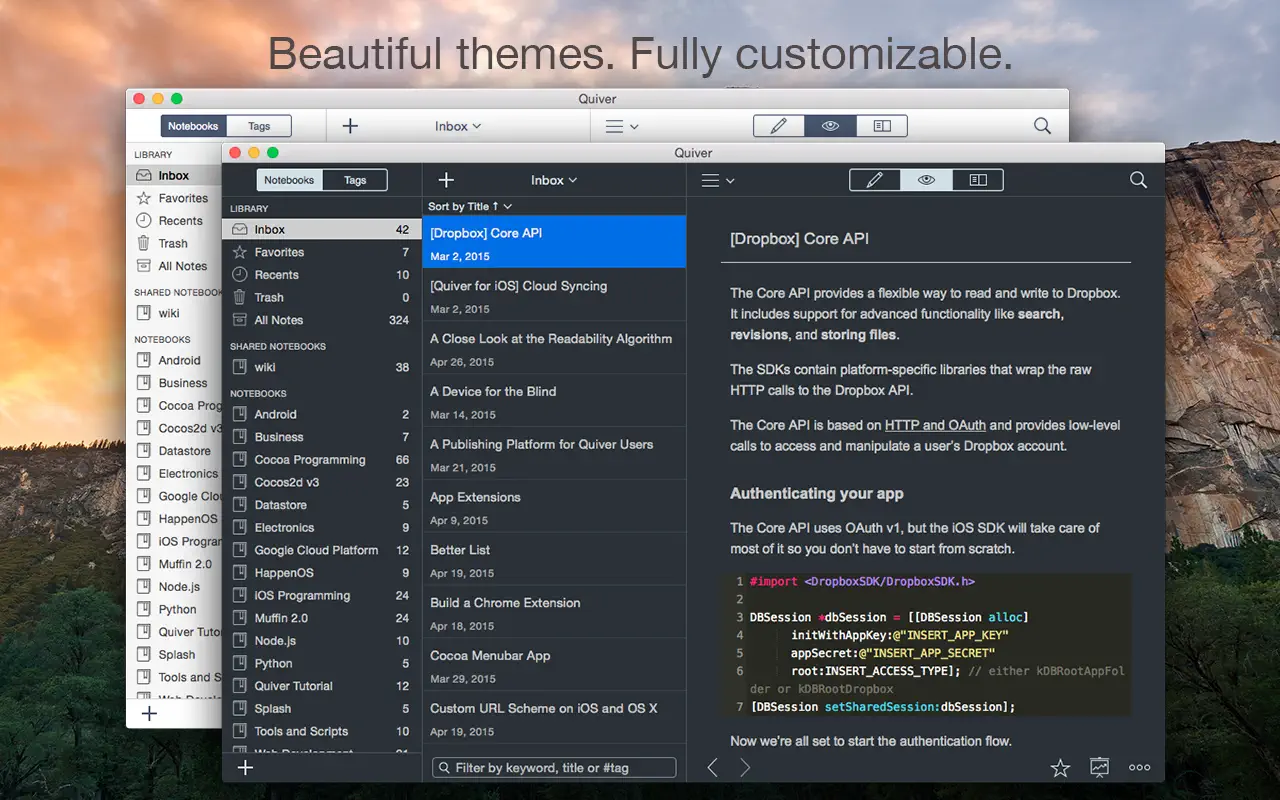
– Beautiful, Fully Customizable Themes – Quiver comes with several beautifully designed UI themes that are fully customizable.
– Presentation Mode – Quiver provides a full-screen presentation mode for your notes. This is great for classroom use, group meetings, presentations, and for reviewing notes on your own.
– Tags – Quiver supports tags. You can assign multiple tags to a note or assign a tag to multiple notes at once. Combined with notebooks and linked notes, you have many different ways to organize your notes.
– Autosave – Quiver automatically saves all your changes as you work, so you don’t have to worry about losing your changes.
– Standard JSON data format – Quiver saves all your data in simple JSON files. These data files are stored on your local computer. You can easily export your notes to various formats, such as HTML and PDF.
– Integrations – Quiver doesn’t lock you in. It stores data in a well-documented, simple JSON format. This makes it easy to write scripts to integrate Quiver notes with other tools you use. Common scripts are available on the Quiver documentation site.
– Cloud sync – Quiver lets you sync all your notes across multiple computers via Dropbox, iCloud Drive, Google Drive, or any other cloud file service.
– Team Collaboration – Quiver makes collaboration easy. You can create a shared notebook so everyone on your team can view or edit notes. This is a great way to build a shared knowledge base for your team.
– Version Control – Since Quiver stores all data in simple JSON files, it’s easy to put the entire library (or a single notebook) under version control. This is another way to collaborate with your team.
– Backup and Restore – Quiver lets you back up your entire library with one click. Restoring your library from a backup is just as easy.
How to install and activate?
Mount the image and run Open Gatekeeper friendly.
Press Enter to bypass Gatekeeper in the Terminal window.
Drag the application to the Applications folder.
The application is ready for use.